Training Programmes
Prescribe structured physical activity — gym, cardio, yoga, pranayama, mobility and daily movement — alongside the meal plan.
Training programmes let you prescribe physical activity the same way you prescribe food: a structure, a dose, and a client who can see it, do it and log it. Gym work, cardio, asana practice, pranayama, mobility and daily step targets all live in one programme.
A programme is separate from a meal plan, because training runs on a different clock — a meal plan is usually a repeating 7-day cycle, a training block is a 4–12 week progression. You can link the two, and the client's portal merges them into one timeline.
Training is available on Starter and above. Find it under Training in the sidebar.
Before you start: your scope of practice
MealStack will not let you issue loaded or maximal-effort programming until you say your practice is qualified to. This is a deliberate gate, and it is the first thing to set.
Go to Settings → Training. There are two modes:
| Mode | What you can prescribe |
|---|---|
| Guidance (default) | Activity targets, written advice, holds, breathwork, steady cardio, bodyweight sets |
| Prescription | Everything in Guidance, plus external load, near-maximal RPE, and intervals |
The line is drawn by risk, not by how structured the prescription looks. Holding Virabhadrasana II for five breaths, or five rounds of a 4:4:8 ratio, is how yoga and pranayama have been taught for centuries — that is not what a fitness qualification exists to govern. External load and maximal effort are: a barbell, a percentage of 1RM, a near-maximal RPE, a HIIT interval. A set of ten push-ups is neither, which is why bodyweight work is permitted.
This is enforced on the server, not just in the interface. In Guidance mode a loaded or maximal-effort prescription is rejected with an explanation, no matter how it is submitted — including when it arrives by instantiating a programme template.
The eight shapes
The reason training needs its own vocabulary is that the modalities genuinely do not share one. Sets × reps cannot express a pranayama ratio, and a daily step target is not a session at all. So a prescription takes one of eight shapes, and each shape has its own editor and its own way of being described to the client.
| Shape | Editor label | What it holds | Guidance mode |
|---|---|---|---|
| Strength | Sets and reps | Sets × reps × load × rest × tempo × RPE, per side if unilateral | Bodyweight only |
| Interval | Intervals | Rounds × work seconds × rest seconds, with a protocol label (EMOM, Tabata, AMRAP) | — |
| Steady | Steady effort | Duration or distance × intensity — a walk, a run, a ride | ✅ |
| Hold | Holds | Hold seconds or a breath count, optionally per side — asana, stretches, isometrics | ✅ |
| Breath | Breathwork | Rounds × a four-part ratio (inhale : hold : exhale : hold) × seconds per count | ✅ |
| Sequence | Sequence | An ordered series of other movements — a flow or a circuit | — |
| Target | Amount | Steps, minutes, sessions, distance or calories, per day or per week | ✅ |
| Freeform | (plain text) | Anything at all | ✅ |
Freeform is always available, in every mode. A practitioner must never be blocked by the model — exactly as a plain-text meal item is never blocked by the food database.
Rounds of a traditional practice are permitted in Guidance mode. Kapalbhati, Bhastrika, Surya Namaskar and cat-cow are counted in rounds of work and rest, which is the same shape as a HIIT interval — but nothing about them is maximal effort, so the gate looks at the movement as well as the shape. Pick them from the library and Guidance mode issues them at their real dose. Rounds of anything else still need Prescription mode.
Bodyweight sets are permitted in Guidance mode, for the same reason. A push-up, a dead bug and a wall slide are the Strength shape, but there is no external load and nothing is taken to failure, so the gate looks at what the sets actually say rather than at the shape alone. Every set must be bodyweight and any RPE must be below 8. One loaded set anywhere in the movement sends the whole prescription to Prescription mode.
Sequence is not yet authorable in the editor. Movements that are sequences — Surya Namaskar, cat-cow — are in the library and render correctly as multi-position illustrations; what is not yet available is building your own flow out of other movements.
Reading a prescription
Each shape produces its own chips, so a yoga teacher never sees the word "sets" near a pranayama:
| Prescription | Reads as |
|---|---|
| Back squat, 3 sets of 8 at 40 kg, RPE 7 | 3 × 8 · 40 kg · RPE 7 · 90s rest |
| Anulom Vilom, 5 rounds at 4:4:8 | 5 rounds · 4:4:8 · ~1.25s/count |
| Virabhadrasana II, 30s per side | 30s hold · per side |
| Brisk walk, 30 minutes | 30 min · easy pace |
| Daily steps | 8,000 steps · per day |
Creating a programme
Start a programme
Go to Training and click New programme. You can Start blank, or start from a ready-made programme — see Programme Templates.
Give it a name, optionally pick a client, and set a length. Days are scaffolded for you and the length can change later.
Add sessions to a day
Each day holds any number of sessions. Pick a session type — each has its own mark, its own colour, and its own default prescription shape:


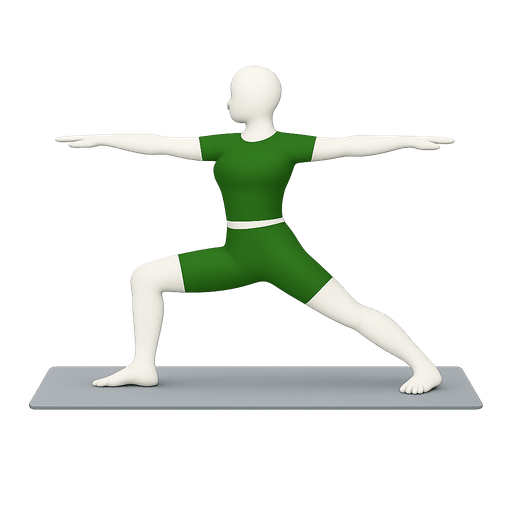
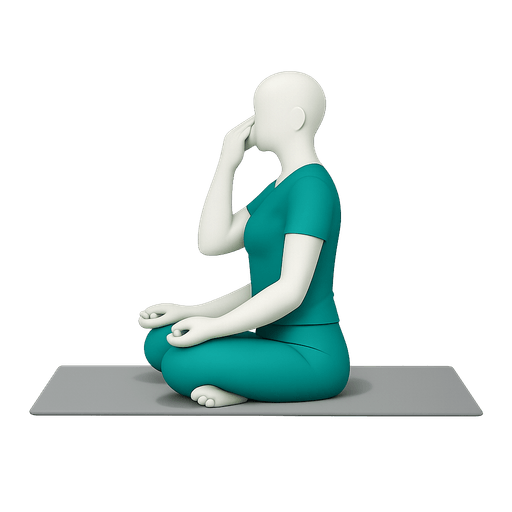
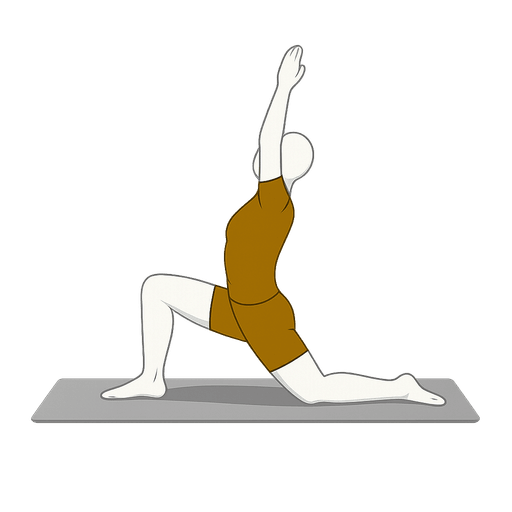

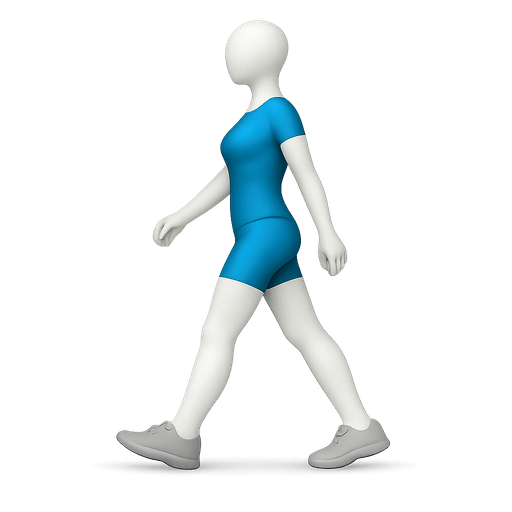
Rest and Custom have no mark. Rest is a state rather than a movement, and Custom is whatever you decide it is.
Rather than starting from an empty session, use a ready-made session. There are thirteen, covering morning pranayama, gentle and flowing yoga, lower-body and full-body gym work, a no-equipment home session, walking, easy running, a desk-reset mobility break, and a daily step target. Each arrives with real movements and real starting numbers.
A day can also be marked as an explicit rest day. That is different from a day with no sessions — rest is prescribed, not absent, and the client sees a deliberate rest card rather than an empty screen.
Add movements
Click Add movement. Search the library — it matches alternate names, so "kapal bhati", "rdl" and "down dog" all find the right entry — or write your own with Set a target or write an instruction. The library ships with 82 movements — see Movement Library.
Picking a library movement brings its default prescription with it. Choosing Anulom Vilom opens a breathwork editor already holding 5 rounds at 4:4:8, not an empty one. Adjust from there.
Set the dose
The editor changes shape with the prescription. Adjust sets, reps, load, rest, RPE and tempo for strength; rounds and work/rest for intervals; the four-part ratio for breathwork; hold seconds or breath count for asana.
Group movements
Two groupings are available on any session:
- Alternatives — movements the client may swap between. Use this when equipment is uncertain: a barbell back squat with a goblet squat as the alternative works for both a commercial gym and a home setup.
- Supersets — movements performed back to back.
Write the notes
Notes exist at every level, and who sees them flips depending on the level:
| Level | Note for the client | Practitioner-only |
|---|---|---|
| Programme | Note for the client — portal and PDF cover | Notes — never shown |
| Day, session, movement | Note for the client — portal and PDF | Internal note — never shown |
At the programme level the fields are inverted relative to every level below it. The interface labels them clearly, but it is worth knowing when you are moving text around.
Screening
Every movement in the library carries precautions, and every client record carries medical conditions. MealStack compares them and raises a banner in the builder.
The matching is two-sided, because both sides are free text written by different people at different times. A client's record says "slipped disc"; a movement's precautions say "Lumbar disc injury". Comparing those strings finds nothing, so each side is resolved to a shared vocabulary of concerns instead, and two entries only meet when they resolve to the same concern.
Screening is advisory and never blocking. It raises the flag and gives the reason; the decision stays with you. You know things the database does not, starting with whether the condition is currently controlled.
Screening runs in three places: while you build, when you instantiate a template, and again when you publish.
Publishing
Make live is not a status change. Publishing is a distinct step, and four things happen:
A start date is required
This is what makes the programme advance day by day. Without it the client repeats day one forever, compliance reports nothing prescribed, and the missed-session sweep skips the programme entirely — all silently. It is optional when you create a programme, because nobody knows it then. It is mandatory here.
Screening re-runs
A movement you added by hand after the first check, or a condition added to the client's record since, is caught now.
Portal access is granted
The client's Training tab is switched on for you. Making you find a second switch afterwards would be the same failure in a smaller form.
The client is told
A timeline entry they can see, and a push notification if they have one enabled.
One active programme per client. Publishing a new programme requires deciding what happens to the incumbent. This is enforced in the database, not just the interface — the portal, the compliance card and the missed-session sweep all assume exactly one.
Programme status
| Status | Meaning | Content editable |
|---|---|---|
| Draft | Being built | ✅ |
| Active | Live for the client — at most one per client | ✅ |
| Paused | Deliberately shelved; a client may hold more than one | ✅ |
| Completed | Finished — a historical record | — |
| Archived | Put away — a historical record | — |
Completed and archived programmes cannot be edited, because editing one silently rewrites what the client already trained against. Reopen as draft first — a deliberate, logged action.
Version history
Every programme keeps immutable snapshots of its full content. A snapshot is captured when it is activated, delivered, published, replaced, or manually — and before any restore or discard.
Open Version history from the builder to compare versions and restore one. Restoring captures a snapshot of the current state first, so a restore is itself reversible.
Compliance
Once a programme is live, the client's completion records flow back. For each client you see:
- Adherence over a window — what was owed against what was logged
- Current streak
- Per-session detail — completed, partly done, skipped, or missed
Missed is different from skipped. Skipped is the client actively saying no. Missed is written by a nightly sweep that runs against yesterday in each client's own timezone — today is never swept, because the day is not over and marking an evening session missed at lunchtime is wrong.
Compliance returns nothing at all — rather than zeroes — when a client has no live programme. "Nothing prescribed" and "prescribed and ignored" mean opposite things, and the difference is preserved.
Linking to a meal plan
A programme can be linked to a meal plan, and individual sessions can name the meals that fuel and recover them. The Pre-Workout and Post-Workout meal slots have existed in the meal structure for a long time; this is what they point at.
Linking is optional and non-authoritative. A programme stands alone perfectly well, and deleting a linked meal clears the link rather than blocking.
A programme exports as a branded PDF alongside your meal plans, with the same practitioner-only fields stripped. Client notes, the disclaimer, the day and session structure and every prescription come through; internal notes never do.
What the client sees
Everything above is the practitioner's half. The client gets a Training tab, a session-by-session player with audio cues, and their own training history — see Client Portal.
Where things live
| Programmes | Training in the sidebar |
| Movement library | Training → Movements — see Movement Library |
| Scope of practice | Settings → Training |
| Per-client portal access | Client → Portal → Training |